The practical answer
Mobile usability is the ability to understand an offer and complete a task comfortably on a small screen. Start with a specific customer journey, then remove obstacles from the menu, content, calls to action and form. Visual polish supports that work but cannot substitute for it.
For implementation support, explore our website design services.
Choose a realistic task and starting point
Select a task such as checking whether a service is suitable and asking for a callback. Begin on the page a visitor might reach from search, rather than assuming everyone starts at the homepage. Note what the person already knows and what they need to decide. Test on a phone with normal browser controls visible and a realistic connection. A desktop window resized to a narrow width is useful during development, but it does not reveal every touch, keyboard, loading or browser behavior experienced by a mobile visitor.
Make the menu a short route to meaningful information
Use navigation labels that describe destinations clearly. A visitor should understand the difference between Services, Articles and Contact without opening several pages. Check that the menu button has an accessible name, responds to touch and keyboard input, and visibly indicates whether the menu is open. Keep important links reachable when text is enlarged. Avoid layering a chat panel, sticky banner and expanded navigation over one another. Test closing the menu after following an in-page link and returning from a destination.
Present service details in a useful reading order
Lead with the service outcome, who it is for and the next practical step. Break the explanation into short sections covering scope, process, required inputs and common questions. Place clarifying examples near unfamiliar terms. Decorative cards should not force visitors to swipe through essential information or hide it behind hover effects. Check the page with increased text size and portrait orientation. Long headings should wrap naturally, and the layout should not require horizontal scrolling to read ordinary paragraphs or submit an enquiry.
Reduce avoidable friction in the contact journey
Ask only for fields needed to respond effectively. Use appropriate input types for email and telephone, visible labels and understandable validation. Keep entered information if a submission fails, and explain the available next step. Telephone links should dial the correct number; email links should use the current address. A WhatsApp button should tell users that another service will open. Sticky contact controls must leave enough room to read and interact with the page, particularly when a mobile keyboard is displayed.
Test an illustrative appointment enquiry
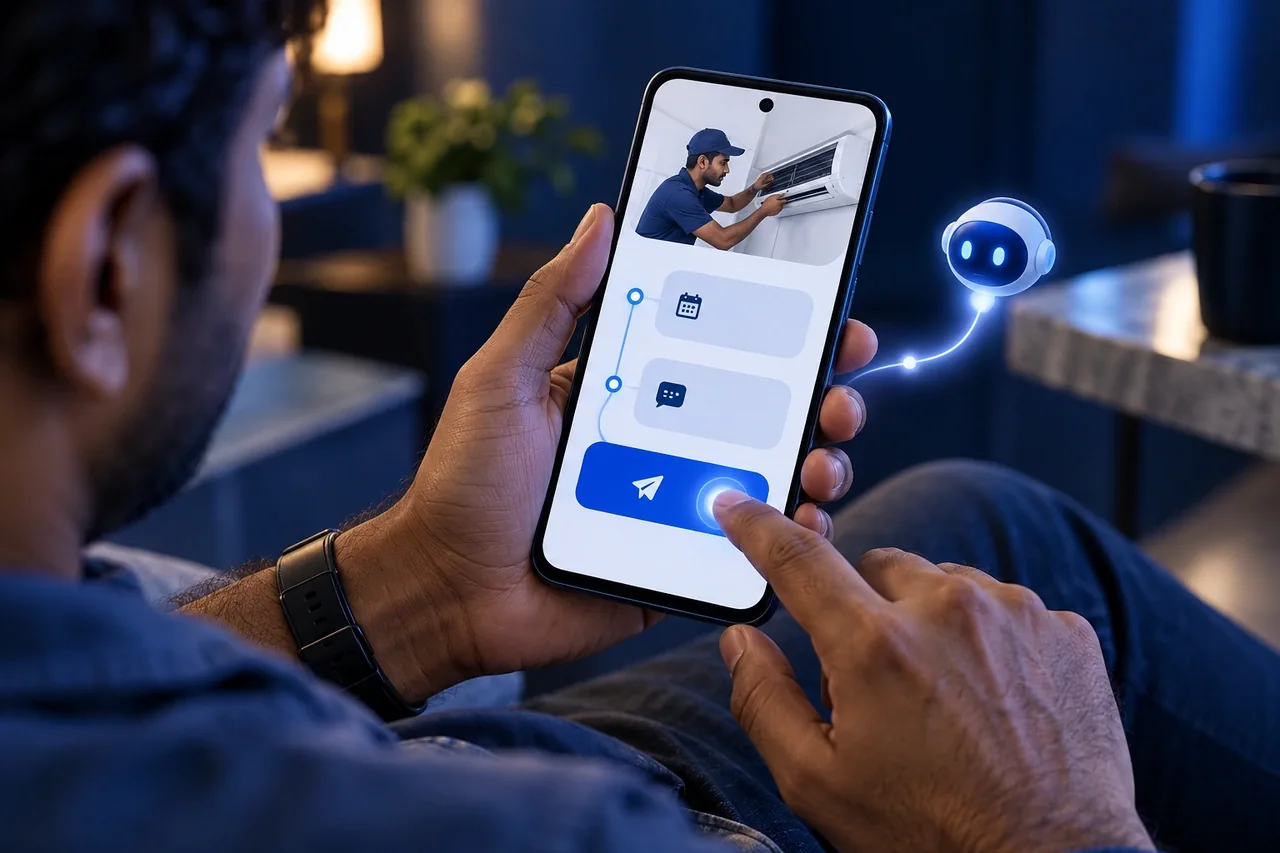
Consider a visitor comparing a website design service while commuting. They need to understand whether the company can improve an existing site and how to discuss the project. A useful mobile page answers that question before presenting the enquiry form. The form accepts a name, contact method and a short description without asking for unnecessary company details. If sending fails, the visitor sees an honest message and an email alternative. This example is a usability scenario, not a claim about conversion improvements or customer results.
Turn observations into a prioritised repair list
Record each obstacle with the page, device, steps and observed effect. Give priority to blocked tasks, unreadable content, hidden controls and misleading success messages. Cosmetic preferences can follow once the journey works reliably. Re-test after fixes on at least the device types most relevant to the audience. If measurement is available, review completed enquiries alongside error patterns and visitor feedback. Do not interpret every abandoned visit as a usability failure; some visitors are researching and will return through another channel.
Begin with a realistic search arrival
A mobile visitor often lands on an article or service page rather than the homepage. Test the page with that limited context: can the person identify the business, understand the offer and find the next relevant action? Do not assume they have already read the introduction elsewhere. A concise page opening and clear navigation help the visitor orient themselves without restarting the journey.
Use an illustrative task such as checking whether an existing website can be reviewed and requesting a discussion. Follow the route from the likely arrival page through supporting information and contact. Record where the person needs to remember a detail, hunt for a control or interpret an unfamiliar label. These observations produce more useful improvements than a general instruction to make the mobile design cleaner.
Treat overlays and fixed controls as part of the content area
Floating chat buttons, sticky menus and browser controls all reduce the space available for reading. Check whether important text, links or form actions remain visible when these elements are present. A control that appears modest on a desktop screenshot can occupy a substantial part of a phone screen. Its placement should support the task without covering the information needed to complete it.
Open and close the mobile menu, chat panel and any disclosure controls during the test. Confirm that the visitor can return to the page and continue from the same context. If an overlay changes focus or scroll position, the behaviour should remain understandable. Visual polish is useful only when the interactive elements remain predictable and do not repeatedly interrupt the reading journey.
Make scanning a reliable way to understand the offer
Use headings that describe the actual questions answered in each section. A mobile reader may scan before deciding whether to read closely, so labels such as Our excellence reveal little about scope or process. Put important qualification information in normal text rather than only inside an image. This helps the content remain useful across screen sizes and different ways of accessing the page.
Keep paragraphs focused and connect them in a sensible order. A long article can work on mobile when the structure is clear and the next section is predictable. Conversely, a short page can be difficult to use when every block repeats a broad claim. Review whether the visitor can locate suitability, practical details and the contact route without reading the entire page word for word.
Test the keyboard state, not only the empty form
On a phone, entering information changes the available viewport and can affect the visibility of labels, error messages and submit controls. Test the form while the on-screen keyboard is open. Use realistic name, email and message entries, then deliberately correct an error. The visitor should not lose previously entered information or have to guess which field requires attention.
Check telephone and email links as separate actions. Their labels should explain what will open, and the values should be correct. If a form relies on a server or mail provider, verify the receiving side through an authorised test rather than assuming that a browser confirmation proves delivery. Mobile usability includes the successful handover of the request, not merely the appearance of the form.
Prioritise repairs by task impact
Classify findings according to whether they block a task, create uncertainty or mainly affect presentation. A hidden contact action or broken menu deserves attention before a minor spacing preference. Record the steps needed to reproduce each issue and the page where it occurs. This makes the repair practical for the implementer and gives the reviewer a clear way to confirm the result.
Repeat the affected journey after the fix and check any shared component on another representative page. There is no need to turn every small improvement into an exhaustive test programme, but the actual obstacle should be resolved. A focused mobile review produces the most value when it connects an observed difficulty with a concrete change and a sensible verification of the resulting customer experience.
Your action checklist
- Test a search landing page through to a completed or clearly failed enquiry.
- Check menu labels, touch targets, keyboard focus and enlarged text.
- Confirm the main service questions can be answered without hover interactions.
- Verify telephone, email and WhatsApp destinations on a real phone.
- Record task blockers separately from visual preferences and retest the repairs.
Common questions
Does a mobile-friendly layout guarantee more enquiries?
No. Usability removes barriers, but demand, pricing, service fit and trust also affect decisions. Assess the quality of the journey and relevant enquiry outcomes rather than promising a universal conversion increase.
Should every mobile page include a sticky contact button?
Only if it helps the task and does not obstruct content, consent controls or form fields. Test the button on small screens, with the keyboard open and with accessibility settings such as larger text.
Continue exploring websites
Plan and maintain a clear, accessible website that supports both discovery and customer action.
- Your website redesign needs an SEO launch plan
- Website Redesign Content Inventory: Decide What to Keep
- Website Accessibility Checklist for Content and Enquiries
- Service Website Maintenance: A Monthly Review Plan
- Tamil and English Websites: Plan a Consistent User Journey
- Website Downloads: Make Guides and Resources Easier to Use
Put the next step into practice
Discuss your website, target audience and business priorities with SEO Optimizer in Chennai.
Explore website design services in Chennai →Discuss your project
Prepared by SEOptimizer editorial. Examples are illustrative; outcomes depend on the business, market and implementation. AI-generated editorial imagery illustrates the subject and does not depict actual customers, employees or client results.