The practical answer
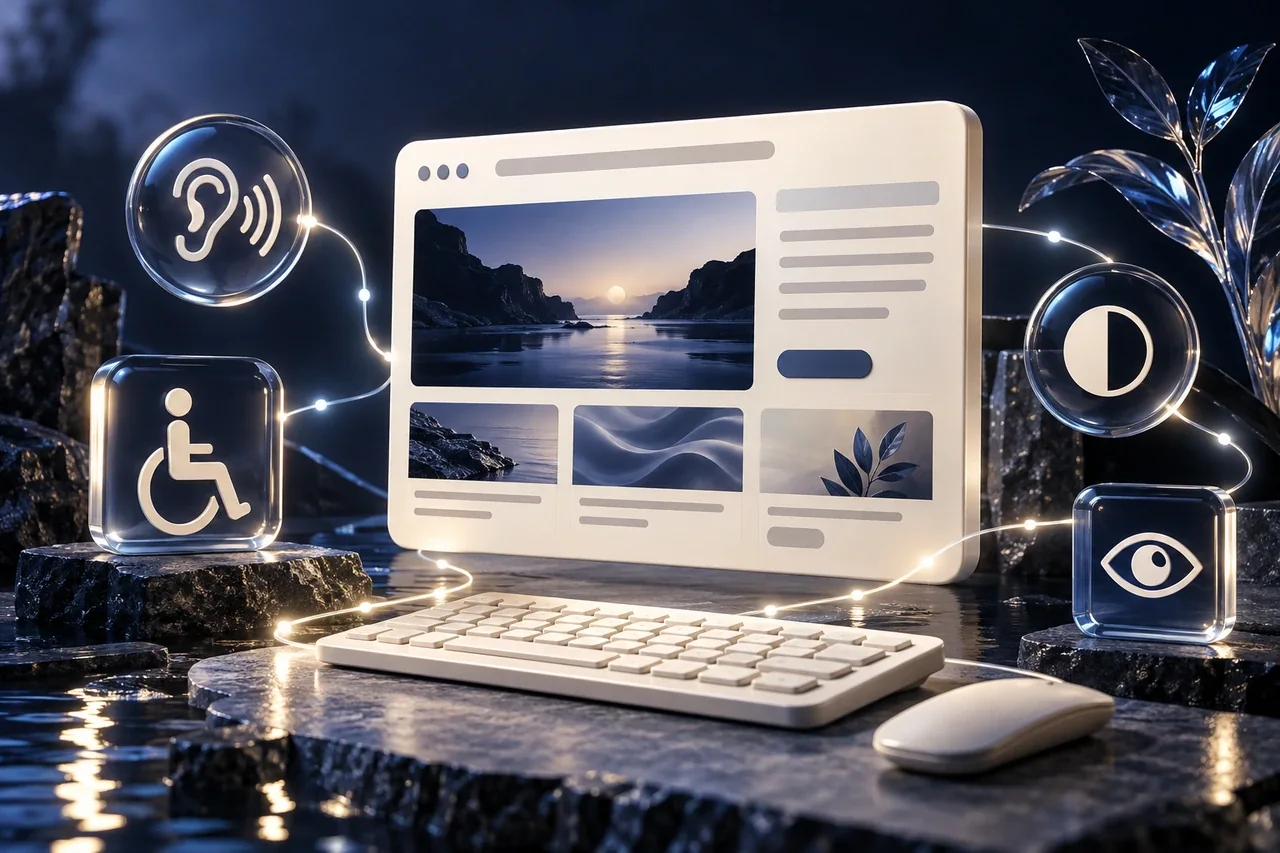
Accessible content begins with clear structure and controls that people can understand and operate. Review headings, links, images and form feedback together with keyboard access and motion preferences. These practical checks support a more usable site; they are not a certification or a substitute for a full accessibility assessment.
For implementation support, explore our website design services.
Use headings to describe the page structure
Write a clear main heading that identifies the page purpose, then use meaningful section headings for the explanation beneath it. Heading levels should express the relationship between sections rather than act as a way to choose font sizes. A long page becomes easier to scan when headings answer recognizable questions. Review the document outline independently of the visual design. If an important section only has a bold paragraph as its label, use an appropriate heading element so assistive technology can recognize the same structure.
Make links understandable where people encounter them
Prefer link wording that explains the destination or action. A service article can link to a related guide by its topic rather than repeating an unexplained Read more label throughout a list. When the surrounding heading already supplies context, ensure the accessible link name remains useful. Do not rely on color alone to distinguish links from text. Keep keyboard focus visible, and check that decorative icons do not create confusing repeated names. Announce an external application or download where that changes the visitor experience.
Choose alternative text based on image purpose
Describe the information an image contributes, not an imagined keyword opportunity. A diagram explaining a process may need a short description and a nearby text explanation of the steps. A decorative background can be ignored by assistive technology when adjacent copy already communicates its purpose. Photographs should not be described as actual client work unless that is true. For image-only buttons, provide an accessible name describing the action. Check the page with images unavailable to confirm that essential information remains understandable.
Connect form fields with clear labels and feedback
Every field needs a persistent label that identifies what to enter. Placeholder text can provide an example but should not replace that label. Explain required fields and any formatting constraints before submission where possible. When a validation error occurs, identify the affected field and how to correct it. When a server request fails, retain the details and provide an honest recovery route. Success notices should be perceivable without relying on a change in color, a briefly displayed animation or a popup that immediately disappears.
Review keyboard use, reading contrast and motion
Navigate the page without a mouse. Check the menu, accordions, chat panel and form in a logical sequence, making sure focus is not lost behind an overlay. Review text and controls against their backgrounds, including hover and disabled states. Subtle animation can improve orientation, but content should remain visible when motion is reduced or JavaScript fails. Avoid making essential information depend on a timed transition. Use established accessibility guidance and appropriate testing tools, then include human checks because automated scans do not evaluate every issue.
Record findings as reproducible tasks
An illustrative issue report might say that the mobile menu opens with a keyboard but focus moves into the obscured page. That description is more useful than saying the menu is inaccessible. Include the browser, steps, affected control and expected behavior. Assign an owner and retest the fix using the same task. Prioritise barriers that prevent reading or completing enquiries. Broader conformance claims require a defined standard, scope and assessment; a short content review should report its actual checks and limitations without overstating the result.
Use the document structure to express meaning
A heading should identify a section and show its relationship to the surrounding content. Choose the level according to that relationship rather than the font size desired. A page with a clear main heading and descriptive section headings becomes easier to navigate and maintain. Styling can then express the visual hierarchy without requiring the editor to misuse the document outline.
Review headings separately from the full design. Read them in sequence and ask whether they describe the page's purpose and progression. If the outline consists of promotional fragments, the structure may not support a person trying to locate an answer. An informative heading such as What the initial review includes communicates a more useful destination than a vague label such as Discover more.
Write link text for the decision to follow it
A link should give enough context for the reader to anticipate the destination or action. Use descriptive wording naturally within the sentence and avoid forcing an exact commercial phrase into every anchor. The important question is whether the link's promise matches the page or action it opens. A technically functioning link can still be confusing when its wording is broad or misleading.
Check repeated links that have identical labels but different destinations. A page containing several Read more controls may need clearer context or accessible names so the choices can be distinguished. Also identify links that open communication apps or files, where the action may matter to the visitor. Clear language helps people decide whether to continue without unnecessary trial and error.
Choose alternative text from the image's role
The same visual can require different treatment depending on its purpose. An image conveying a meaningful concept needs a concise description of that relevant information. A purely decorative flourish may not need descriptive text. Avoid using alternative text as a place to insert a list of SEO phrases or to repeat a caption that already communicates the same information.
For an illustrative article image about content planning, describe the meaningful scene rather than asserting an unverified result or identifying fictional people as real staff. If a graphic contains essential instructions, ensure the information is available in text as well. The aim is to preserve the content's meaning for someone who cannot use the image, not to catalogue every visible colour and object.
Make forms understandable before and after an error
Use persistent labels that remain visible after a person starts typing. Mark required information clearly and place any instructions where they can be used. When validation finds a problem, explain the correction and preserve other entered details where possible. A generic failure message can leave the visitor uncertain whether the problem concerns a field, the connection or the server.
Test the form with a keyboard and with realistic error recovery. Check that the person can reach every control, understand the focus position and continue without a mouse. Include the final acknowledgement and delivery behaviour in the review. A form's accessibility and usability depend on its interactive states, so an attractive static screenshot cannot establish that the task is manageable.
Treat motion and visual emphasis proportionately
Animation should support orientation or feedback without becoming necessary to understand the content. Respect a visitor's reduced-motion preference and avoid continuous effects that compete with reading. Important information should remain available when animation is disabled. Decorative polish is most useful when the page remains calm enough for a person to concentrate on the service or article.
Review focus visibility, readable contrast and the effect of enlarged text in addition to the default view. These practical checks can reveal real obstacles, but they should not be described as a complete accessibility certification. Record the findings and their scope honestly. The checklist is a way to improve the website through concrete observations while recognising when a broader specialist assessment may be needed.
Your action checklist
- Review heading hierarchy and replace decorative headings with meaningful structure.
- Test whether link names explain their destination in context.
- Check image purpose before writing alternative text or marking it decorative.
- Complete the enquiry form using keyboard navigation and inspect error feedback.
- Test reduced motion, text enlargement and menu focus before claiming a fix.
Common questions
Can an automated accessibility scanner prove the website is accessible?
No. Automated tools identify some problems but cannot judge every label, reading order or interaction. Combine them with keyboard checks, task-based review and, where appropriate, assessment by accessibility specialists and disabled users.
Should every image have a detailed description?
No. Informative images need useful alternatives, while decorative images can have an empty alternative attribute. The correct treatment depends on the image role and the information already available nearby.
Further reading
Continue exploring websites
Plan and maintain a clear, accessible website that supports both discovery and customer action.
- Your website redesign needs an SEO launch plan
- Website Redesign Content Inventory: Decide What to Keep
- Mobile Service Website Usability: Make Enquiries Easier
- Service Website Maintenance: A Monthly Review Plan
- Tamil and English Websites: Plan a Consistent User Journey
- Website Downloads: Make Guides and Resources Easier to Use
Put the next step into practice
Discuss your website, target audience and business priorities with SEO Optimizer in Chennai.
Explore website design services in Chennai →Discuss your project
Prepared by SEOptimizer editorial. Examples are illustrative; outcomes depend on the business, market and implementation. AI-generated editorial imagery illustrates the subject and does not depict actual customers, employees or client results.